CSS field notes · October 2026
A measured gap is not necessarily the CSS gap
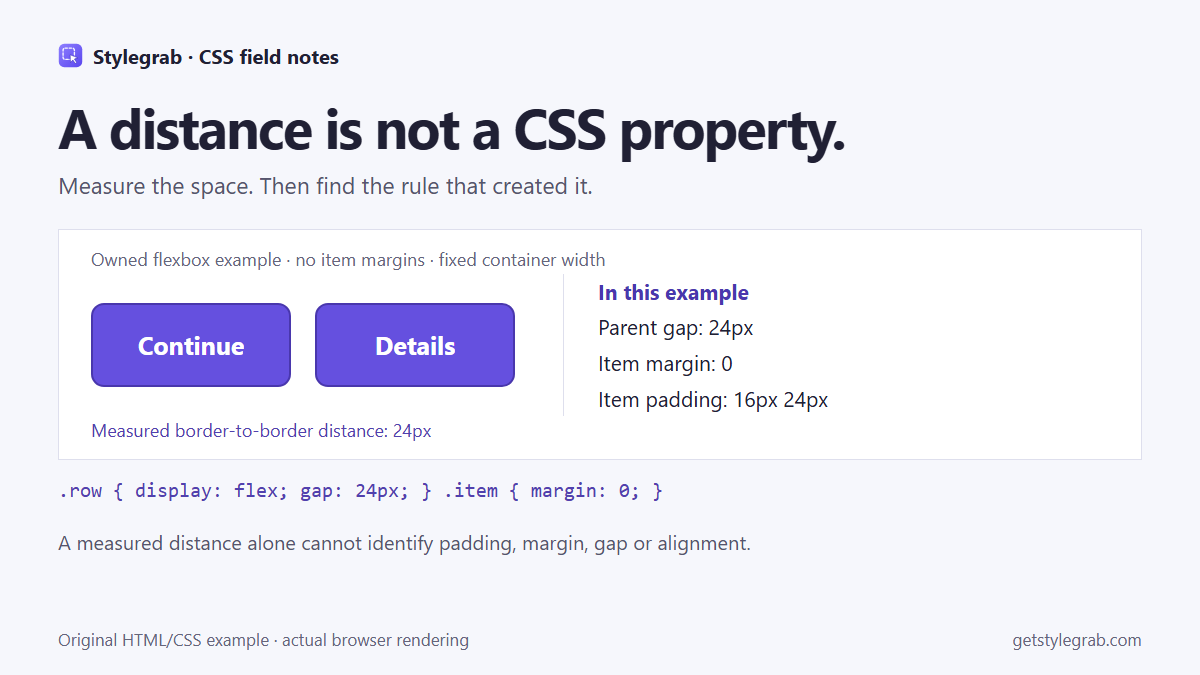
Two buttons are 24 pixels apart. Should you change gap, margin or padding?
The number alone cannot tell you. A measurement describes the rendered geometry. A CSS property describes one of the rules that helped produce it. Treating those as the same thing is a common way to fix one layout and break another.
Here is a small example you can use to separate the observation from its cause.
Start with a layout whose cause you know
<div class="row">
  <button class="item">Continue</button>
  <button class="item">Details</button>
</div>
<style>
  .row { display: flex; gap: 24px; width: 424px; }
  .item {
    box-sizing: border-box;
    flex: 0 0 200px;
    height: 84px;
    margin: 0;
    padding: 16px 24px;
    border: 2px solid #4937ad;
    border-radius: 13px;
    background: #6550df;
    color: white;
    font: 600 24px system-ui, sans-serif;
  }
</style>
The two items occupy 400 pixels, and their parent supplies a 24-pixel gap. The items have zero margins. Their padding affects the space inside their border boxes; it is not the 24-pixel space between the boxes.
The comparison image is an original browser rendering of this layout. It illustrates a known cause, rather than pretending that a measurement tool automatically diagnosed it.
Measure the border boxes
const [a, b] = document.querySelectorAll('.row .item');
const aBox = a.getBoundingClientRect();
const bBox = b.getBoundingClientRect();
console.log(bBox.left - aBox.right); // 24
This calculation is useful for the simple, untransformed, left-to-right row above. It is not a general distance algorithm for overlapping, wrapped or transformed elements.
Now try this change to the parent:
.row {
  gap: 0;
  justify-content: space-between;
}
The width remains 424 pixels and each item remains 200 pixels wide. The border-to-border distance is still 24 pixels. This time, distributed free space produces the separation, while gap is zero.
That is why “I measured 24 pixels” is an observation, not a diagnosis.
Inspect the rule before editing
Select an item and inspect its box model. Check its padding and margins, then select the parent and inspect its layout rules. For flex or grid layouts, check gap as well as alignment and distributed space. Use the browser's layout overlays when they clarify the relationship.
Change one relevant rule, then measure again at the same viewport. If the result moves unexpectedly, check whether the container resized, an item wrapped, or the text changed the item's dimensions. Avoid compensating with an unrelated negative margin before understanding the cause.
The same caution applies to screenshots: visible empty space may include more than one contribution. Vertical block margins can also collapse in layouts where margin collapsing applies; the flex-row example here does not demonstrate that behavior.
Use a measurement tool as an observation aid
I am involved in building Stylegrab. In its measurement workflow, pin an element, hold Alt and hover another to inspect their rendered distance. Our short, silent demonstration uses an owned sample page. It shows the measurement interaction; it does not automatically identify the layout rule that caused the space.
You can do the investigation with DevTools too. If you want to explore example style output first, the no-install sample runs only on our own components. The Chrome extension includes free inspection and CSS copying; copied values still need checking in your destination layout.
What usually causes the most confusion in your own layouts: item margins, parent gap, distributed space or wrapping? Please use non-confidential examples.
Disclosure: product development and this article used AI assistance. The fixed-width flex example was checked in a browser, including the same distance with gap and with space-between.
Technical reference: MDN gap.